

Production Deployment
Complete guide to deploying Lite Claw in production.For a quick first deployment, see Quickstart. This guide covers the full production setup.
Architecture
Run three Railway services: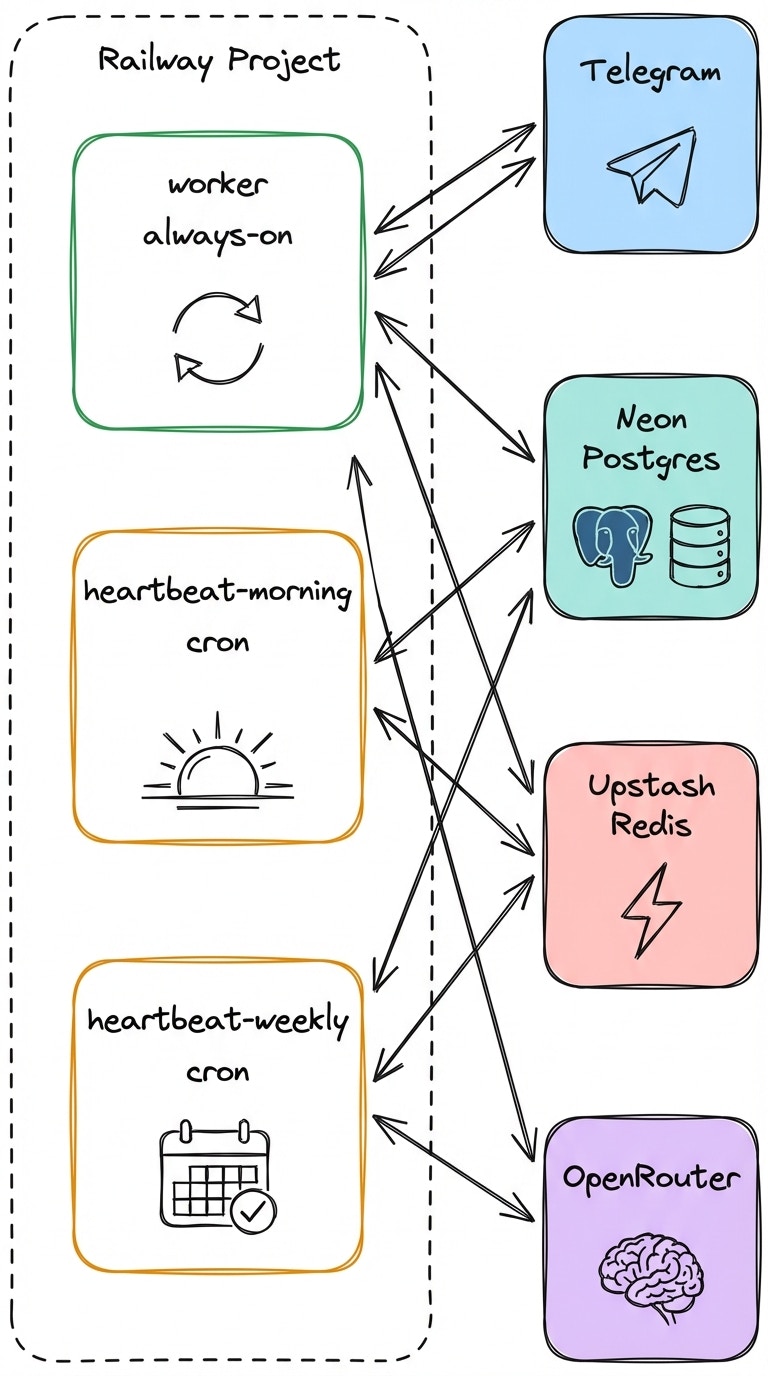
Why do cron services run every minute?
Why do cron services run every minute?
The heartbeat job checks
heartbeat_jobs.schedule_cron and the user’s timezone at runtime. It only sends if actually due. Duplicate sends are prevented with Redis slot keys.This pattern avoids Railway cron granularity limits while keeping timezone handling in application code.Prerequisites
Environment Variables
- Required
- Optional
- Cron Services Only
Generating TOKEN_ENCRYPTION_KEY
Google OAuth Setup
1
Create OAuth Client
In Google Cloud Console:
- Create a new project (or use existing)
- Go to APIs & Services → Credentials
- Create OAuth client ID (Web application)
2
Configure Redirect URI
Add authorized redirect URI:
3
Enable APIs
In APIs & Services → Library, enable:
- Google Calendar API
- Gmail API
https://www.googleapis.com/auth/calendarhttps://www.googleapis.com/auth/calendar.eventshttps://www.googleapis.com/auth/gmail.readonly
Deploy
1
Run checks locally
2
Create Railway services
Create three services in your Railway project:
worker— Start command:pnpm startheartbeat-morning— Cron service, command:pnpm heartbeat:runheartbeat-weekly— Cron service, command:pnpm heartbeat:run
3
Set environment variables
Add all required variables to each service. For cron services, also set
HEARTBEAT_JOB_TYPE.4
Deploy worker first
Deploy the worker service and verify it starts without errors.
5
Deploy cron services
Deploy both heartbeat services.
First-Run Setup
After deployment, set up your bot in Telegram:1
Claim ownership
2
Connect integrations
3
Enable heartbeats
4
Test
Validate
Run through the Go-Live Validation checklist before considering the deployment complete.Known Limits
- Token encryption key rotation requires users to reconnect integrations
- Calendar event extraction is heuristic-based; edge phrasing may need clarification
- Only Google Calendar/Gmail and OpenWeather are integrated; other providers are optional extensions
Next Steps
Validation Checklist
Full go-live checklist
Runbook
Day-2 operations and incident response