> ## Documentation Index
> Fetch the complete documentation index at: https://docs.liteclaw.ai/llms.txt
> Use this file to discover all available pages before exploring further.
# Deployment
> Production deployment on Railway + Neon + Upstash.
# Production Deployment
Complete guide to deploying Lite Claw in production.
For a quick first deployment, see [Quickstart](/quickstart). This guide covers the full production setup.
## Architecture
Run three Railway services:
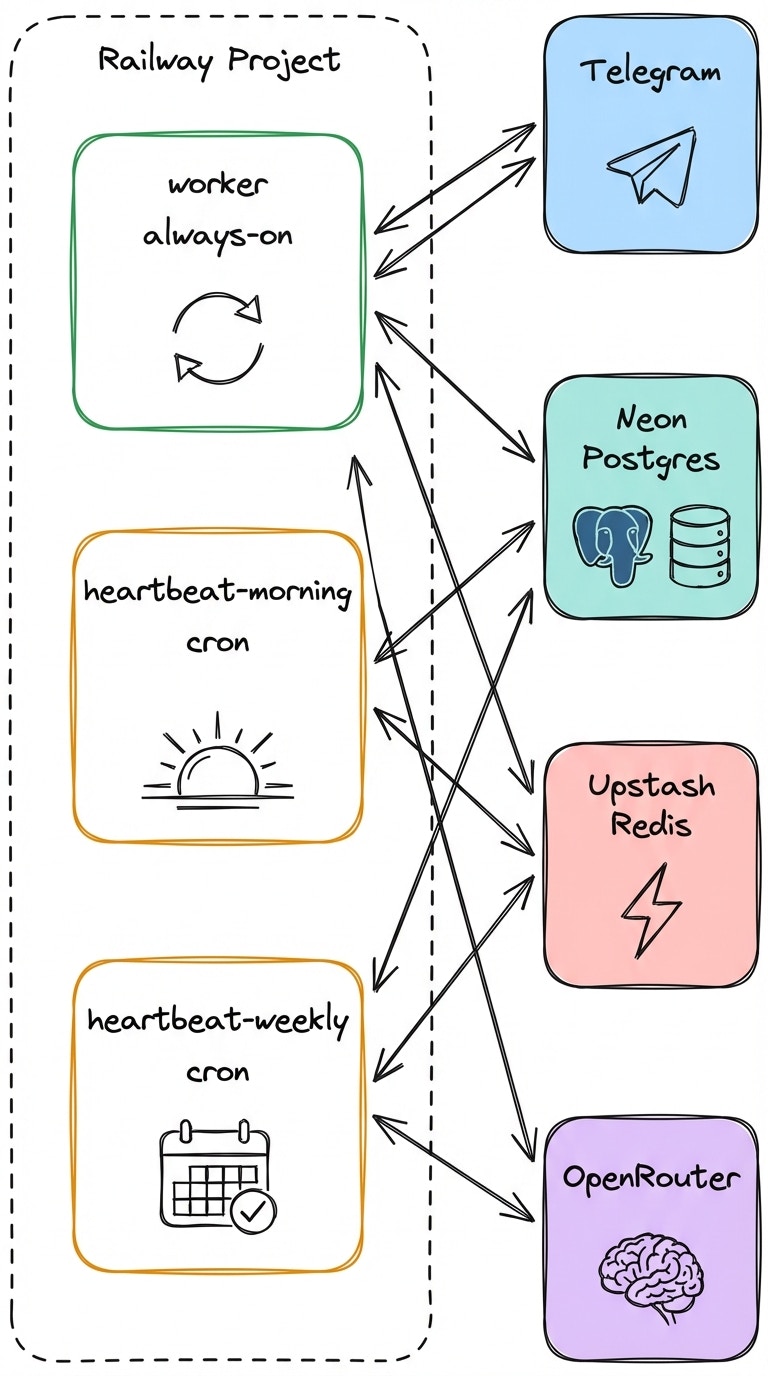 | Service | Command | Purpose |
| ------------------- | -------------------- | --------------------------------------- |
| `worker` | `pnpm start` | Telegram long polling, auth, agent loop |
| `heartbeat-morning` | `pnpm heartbeat:run` | Morning briefing (cron) |
| `heartbeat-weekly` | `pnpm heartbeat:run` | Weekly review (cron) |
The heartbeat job checks `heartbeat_jobs.schedule_cron` and the user's timezone at runtime. It only sends if actually due. Duplicate sends are prevented with Redis slot keys.
This pattern avoids Railway cron granularity limits while keeping timezone handling in application code.
## Prerequisites
| Service | Purpose | Free Tier |
| ------------------------------------------------ | ----------------------- | ------------- |
| [Railway](https://railway.app) | Hosting | \$5 credits |
| [Neon](https://neon.tech) | Postgres | Yes |
| [Upstash](https://upstash.com) | Redis | Yes |
| [OpenRouter](https://openrouter.ai) | LLM API | Pay-as-you-go |
| [Google Cloud](https://console.cloud.google.com) | OAuth (Calendar, Gmail) | Yes |
## Environment Variables
| Variable | Description |
| ---------------------------- | ------------------------------------------- |
| `TELEGRAM_BOT_TOKEN` | From [@BotFather](https://t.me/BotFather) |
| `OPENROUTER_API_KEY` | API key with credits |
| `DATABASE_URL` | Neon Postgres connection string |
| `UPSTASH_REDIS_REST_URL` | Upstash Redis REST URL |
| `UPSTASH_REDIS_REST_TOKEN` | Upstash Redis token |
| `OWNER_CLAIM_CODE` | Secret code to claim ownership |
| `OWNER_CLAIM_PEPPER` | Salt for hashing claim code |
| `PUBLIC_BASE_URL` | Your public domain (for OAuth callback) |
| `TOKEN_ENCRYPTION_KEY` | 32-byte base64url key for encrypting tokens |
| `GOOGLE_OAUTH_CLIENT_ID` | Google Cloud OAuth client ID |
| `GOOGLE_OAUTH_CLIENT_SECRET` | Google Cloud OAuth client secret |
| Variable | Description | Default |
| --------------------------- | ------------------------- | ------------------------------------------ |
| `GOOGLE_OAUTH_REDIRECT_URI` | OAuth callback URL | `${PUBLIC_BASE_URL}/oauth/google/callback` |
| `DEFAULT_WEATHER_LOCATION` | Fallback weather location | — |
| `OPENWEATHER_API_KEY` | OpenWeather API key | — |
| `GOOGLE_CALENDAR_ID` | Default calendar ID | primary |
| Variable | Description |
| -------------------- | ------------------------------------- |
| `HEARTBEAT_JOB_TYPE` | `morning_briefing` or `weekly_review` |
### Generating TOKEN\_ENCRYPTION\_KEY
```bash theme={null}
node -e "console.log(require('crypto').randomBytes(32).toString('base64url'))"
```
## Google OAuth Setup
In [Google Cloud Console](https://console.cloud.google.com):
1. Create a new project (or use existing)
2. Go to **APIs & Services → Credentials**
3. Create **OAuth client ID** (Web application)
Add authorized redirect URI:
```
https:///oauth/google/callback
```
In **APIs & Services → Library**, enable:
* Google Calendar API
* Gmail API
**Scopes requested:**
* `https://www.googleapis.com/auth/calendar`
* `https://www.googleapis.com/auth/calendar.events`
* `https://www.googleapis.com/auth/gmail.readonly`
## Deploy
```bash theme={null}
pnpm install
pnpm migrate
pnpm check
pnpm build
```
Create three services in your Railway project:
* `worker` — Start command: `pnpm start`
* `heartbeat-morning` — Cron service, command: `pnpm heartbeat:run`
* `heartbeat-weekly` — Cron service, command: `pnpm heartbeat:run`
Add all required variables to each service. For cron services, also set `HEARTBEAT_JOB_TYPE`.
Deploy the worker service and verify it starts without errors.
Deploy both heartbeat services.
## First-Run Setup
After deployment, set up your bot in Telegram:
```
/start
/claim
```
```
/integrations connect calendar
/integrations connect gmail
/integrations weather San Francisco, CA
```
```
/heartbeats morning on
/heartbeats weekly on
```
```
What's on my calendar tomorrow?
```
## Validate
Run through the [Go-Live Validation](/validation) checklist before considering the deployment complete.
## Known Limits
* Token encryption key rotation requires users to reconnect integrations
* Calendar event extraction is heuristic-based; edge phrasing may need clarification
* Only Google Calendar/Gmail and OpenWeather are integrated; other providers are optional extensions
## Next Steps
Full go-live checklist
Day-2 operations and incident response
| Service | Command | Purpose |
| ------------------- | -------------------- | --------------------------------------- |
| `worker` | `pnpm start` | Telegram long polling, auth, agent loop |
| `heartbeat-morning` | `pnpm heartbeat:run` | Morning briefing (cron) |
| `heartbeat-weekly` | `pnpm heartbeat:run` | Weekly review (cron) |
The heartbeat job checks `heartbeat_jobs.schedule_cron` and the user's timezone at runtime. It only sends if actually due. Duplicate sends are prevented with Redis slot keys.
This pattern avoids Railway cron granularity limits while keeping timezone handling in application code.
## Prerequisites
| Service | Purpose | Free Tier |
| ------------------------------------------------ | ----------------------- | ------------- |
| [Railway](https://railway.app) | Hosting | \$5 credits |
| [Neon](https://neon.tech) | Postgres | Yes |
| [Upstash](https://upstash.com) | Redis | Yes |
| [OpenRouter](https://openrouter.ai) | LLM API | Pay-as-you-go |
| [Google Cloud](https://console.cloud.google.com) | OAuth (Calendar, Gmail) | Yes |
## Environment Variables
| Variable | Description |
| ---------------------------- | ------------------------------------------- |
| `TELEGRAM_BOT_TOKEN` | From [@BotFather](https://t.me/BotFather) |
| `OPENROUTER_API_KEY` | API key with credits |
| `DATABASE_URL` | Neon Postgres connection string |
| `UPSTASH_REDIS_REST_URL` | Upstash Redis REST URL |
| `UPSTASH_REDIS_REST_TOKEN` | Upstash Redis token |
| `OWNER_CLAIM_CODE` | Secret code to claim ownership |
| `OWNER_CLAIM_PEPPER` | Salt for hashing claim code |
| `PUBLIC_BASE_URL` | Your public domain (for OAuth callback) |
| `TOKEN_ENCRYPTION_KEY` | 32-byte base64url key for encrypting tokens |
| `GOOGLE_OAUTH_CLIENT_ID` | Google Cloud OAuth client ID |
| `GOOGLE_OAUTH_CLIENT_SECRET` | Google Cloud OAuth client secret |
| Variable | Description | Default |
| --------------------------- | ------------------------- | ------------------------------------------ |
| `GOOGLE_OAUTH_REDIRECT_URI` | OAuth callback URL | `${PUBLIC_BASE_URL}/oauth/google/callback` |
| `DEFAULT_WEATHER_LOCATION` | Fallback weather location | — |
| `OPENWEATHER_API_KEY` | OpenWeather API key | — |
| `GOOGLE_CALENDAR_ID` | Default calendar ID | primary |
| Variable | Description |
| -------------------- | ------------------------------------- |
| `HEARTBEAT_JOB_TYPE` | `morning_briefing` or `weekly_review` |
### Generating TOKEN\_ENCRYPTION\_KEY
```bash theme={null}
node -e "console.log(require('crypto').randomBytes(32).toString('base64url'))"
```
## Google OAuth Setup
In [Google Cloud Console](https://console.cloud.google.com):
1. Create a new project (or use existing)
2. Go to **APIs & Services → Credentials**
3. Create **OAuth client ID** (Web application)
Add authorized redirect URI:
```
https:///oauth/google/callback
```
In **APIs & Services → Library**, enable:
* Google Calendar API
* Gmail API
**Scopes requested:**
* `https://www.googleapis.com/auth/calendar`
* `https://www.googleapis.com/auth/calendar.events`
* `https://www.googleapis.com/auth/gmail.readonly`
## Deploy
```bash theme={null}
pnpm install
pnpm migrate
pnpm check
pnpm build
```
Create three services in your Railway project:
* `worker` — Start command: `pnpm start`
* `heartbeat-morning` — Cron service, command: `pnpm heartbeat:run`
* `heartbeat-weekly` — Cron service, command: `pnpm heartbeat:run`
Add all required variables to each service. For cron services, also set `HEARTBEAT_JOB_TYPE`.
Deploy the worker service and verify it starts without errors.
Deploy both heartbeat services.
## First-Run Setup
After deployment, set up your bot in Telegram:
```
/start
/claim
```
```
/integrations connect calendar
/integrations connect gmail
/integrations weather San Francisco, CA
```
```
/heartbeats morning on
/heartbeats weekly on
```
```
What's on my calendar tomorrow?
```
## Validate
Run through the [Go-Live Validation](/validation) checklist before considering the deployment complete.
## Known Limits
* Token encryption key rotation requires users to reconnect integrations
* Calendar event extraction is heuristic-based; edge phrasing may need clarification
* Only Google Calendar/Gmail and OpenWeather are integrated; other providers are optional extensions
## Next Steps
Full go-live checklist
Day-2 operations and incident response